
Understanding GPU Idle Temp: Causes, Effects, Solutions
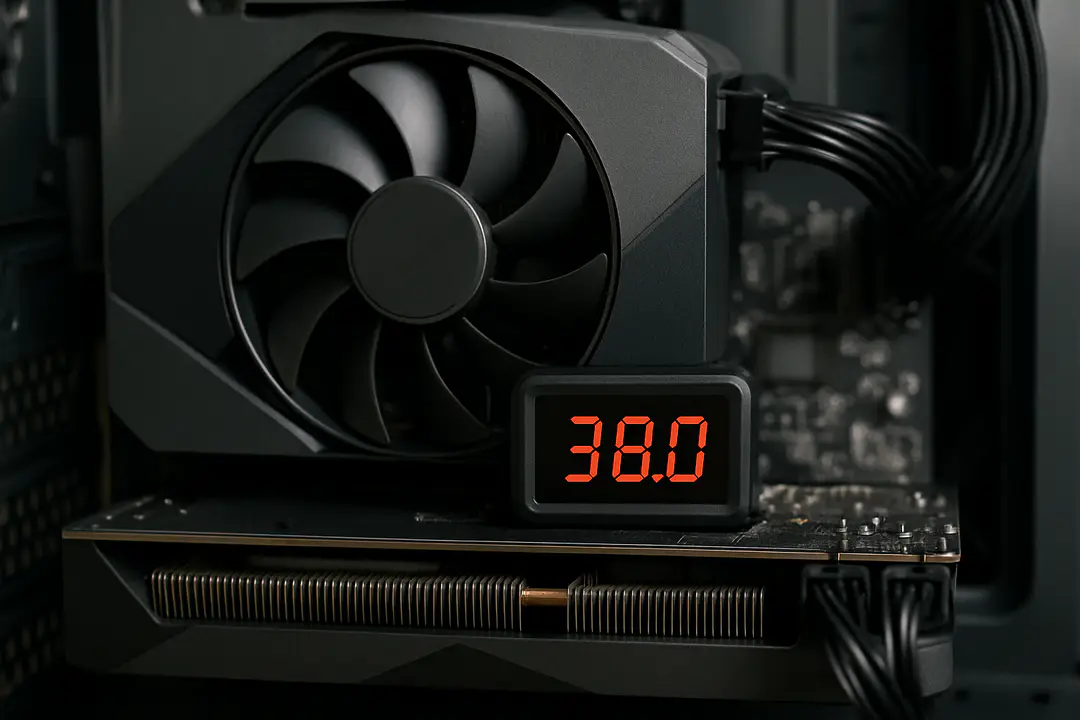
We often track GPU temperatures under heavy loads to avoid performance drops, crashes, or unexpected shutdowns. Yet the temperature at rest, known as GPU idle temp, rarely gets our attention. Small changes in idle numbers can reveal early signs of dust buildup, poor fan curves, or weak case airflow. Spotting these issues at idle could prevent thermal throttling or even hardware damage later on. So could your GPU idle temp be telling you something important right now?
Monitoring your GPU’s idle temperature is a quick, free step that can save you headaches. When you see a stable, low reading at rest, you know your cooling setup works. If the numbers are high, you can act early—clean fans, tweak fan curves, or add case airflow. This simple habit leads to better performance and longer hardware life.
Why Idle Temps Matter
Your GPU idle temp is more than a number on a graph. It shows your card’s baseline heat and how well your cooling gear works at rest. If you see a high reading, fans might be underperforming, or vents could be clogged. Over time, constant stress at higher temps can shorten component life. By keeping idle temps low, you build a buffer that helps under load and keeps the system stable.
Checking idle heat also saves on energy bills. A lean, efficient fan curve means fans spin only when needed. This cuts power draw and noise in daily tasks. It also prepares your rig for heavier work. For insights into the latest hardware trends and rising thermal management solutions, explore broader technology updates.
Idle temps are also a warning sign before you tweak graphics settings. A clean read lets you know your stock clocks and factory voltages run cool. If you plan to overclock or use more intensive apps, a low idle temp shows you have room to grow. It’s a simple test but one many skip.
Another reason to track idle heat is dust control. Small dust layers can raise idle temps by 5–10 °C without you noticing. Regular cleaning with compressed air can drop temps back to normal. That small step can provide better performance under stress too.
What Influences Temps
Ambient room temperature is the first factor affecting GPU idle temp. A hotter room leads to higher idle readings. Keep your system in a cool, well-ventilated area to give fans a head start.
Case airflow and fan setup also matter. Intake and exhaust fans move cool air in and hot air out. A balanced fan layout prevents heat pockets around the GPU. Consider adding or reorienting fans if idle temps stay high.
GPU design and factory fan curve play a role. Some cards have conservative curves that spin fans slowly at rest. You can use tools like MSI Afterburner to tweak this. A slightly higher idle fan speed can drop temps a few degrees.
Driver settings and power profiles can change idle behavior. Under default settings, the GPU may not enter deep sleep. Changing power modes in your driver or OS lets the card sit at lower power states with less heat.
Cable management and component layout can also impact airflow. Crowded cases trap heat. Tidy cables with zip ties and choose short power cables for a cleaner interior. Better airflow means better idle temps.
Measuring Idle Temps
Knowing how to check idle temps is key to seeing real numbers. You need the right software and a clear method. Here is a simple guide:
- Download a monitoring tool like MSI Afterburner or HWMonitor.
- Install and run the tool, then let your PC sit idle for five minutes.
- Note the GPU temperature readout labeled “GPU Temperature” or similar.
- Record the average value over a minute for an accurate measure.
- Repeat this after any fan or airflow change to spot improvements.
Troubleshooting tip: If readings jump wildly, update your GPU drivers or restart your monitoring app. Some tools misread sensors if the driver state changes.
Pick a calm moment before heavy work. Close background apps so the GPU is truly idle. This gives you a clean baseline. Record your first idle temp as your starting data.
Use consistent settings across tests. If you change fan curves or case panels, rerun the idle check. Over time, you build a log that shows if a cleaning or hardware swap helped. This log is your best tool to measure cooling gains.
Some GPUs show multiple sensor values like hotspot temp or memory temp. Focus on the core temperature for a clear view. If hotspot sensors are far above core, the card may throttle under load before core temp hits the limit.
Ideal Temp Ranges
Different GPU models run at different idle temps by design. Here is a quick comparison:
| GPU Model | Idle Temp Range |
|---|---|
| Nvidia GTX 1060 | 30–40 °C |
| Nvidia RTX 3060 | 35–45 °C |
| AMD RX 580 | 30–42 °C |
| AMD RX 6600 | 38–48 °C |
| Nvidia RTX 4090 | 40–50 °C |
Note that high-end cards may run warmer due to power draw even at idle. If your readings fall within these ranges, your GPU is likely healthy. Values above range suggest you need better airflow or a fan curve change.
Always compare your card to similar stock designs. Custom coolers and non-reference models can shift these ranges by a few degrees. When in doubt, consult your card’s official specs or community benchmarks.
A stable idle temp that sits 5–10 °C below your load temp gives room in your thermal budget. This margin can help under heavy gaming and prevent sudden spikes. Adjust your expectations based on case size and ambient temperature.
Tip: Check both core and hotspot temps on modern GPUs. The hotspot sensor can run 5–10 °C higher than the core but still report healthy idle readings. Track both to avoid unexpected throttling under load.
Troubleshooting High Idle
If your GPU idle temp stays above 50 °C, start with a visual check. Look for dust on fan blades and radiator fins. Use compressed air to clear debris without spinning the fan too fast.
Next, review your fan curve in a tool like MSI Afterburner. A flat curve may keep fans off until temps surge. Try a gentle curve that starts spinning at 35 °C to maintain airflow at rest.
Check case airflow by feeling air movement near intake and exhaust fans. Weak airflow can trap heat. Rearrange cables and consider adding a 120 mm fan in front or top of the case.
Update GPU drivers and system BIOS. Sometimes outdated firmware leads to poor power management and idle clocks that hover higher. After updates, test idle temps again for any improvement.
Last, examine power settings in Windows. High performance mode can keep GPU states active, raising idle temps. Switch to balanced mode, or tweak power profiles in your GPU control panel to allow deeper sleep states.
When all else fails, reseat the GPU and reapply fresh thermal paste. Over time, paste can dry out and reduce heat transfer. A simple repaste often drops idle temps by a few degrees.
Quick tip: If temperatures still lag, try removing and reconnecting power cables to ensure a snug fit. Loose connections cause voltage dips and heat spikes.
Improving Cooling Systems
Upgrading your case fans is one of the easiest ways to lower GPU idle temp. Look for high airflow models with static pressure ratings. Pair intake and exhaust fans for a good balance.
You can also fit a larger GPU cooler or an aftermarket blower. Some models support 2-slot designs with extra heat pipes. These clear idle heat faster and keep fan noise down.
Consider adding a small fan to your PCI slot area. It helps push air directly over the GPU heatsink. You can find USB-powered fans that clip on and run quietly.
Replacing old thermal paste on the GPU core can make a big difference. Clean the existing paste with alcohol and reapply a thin, even layer. This step can lower idle temps by several degrees.
Remember the lessons from other devices. The Honor Magic 5 Pro uses multiple heat pipes in a tight space to spread heat evenly. You can use similar ideas in small form factor builds with low-profile coolers and strategic fan placement.
Finally, maintain a regular cleaning schedule. Even the best fans lose efficiency when dust collects. A quick blow with compressed air every few months keeps idle temps in check.
In extreme cases, liquid cooling offers the lowest idle temperatures. An all-in-one loop can push idle temps into the 20s Celsius, though at higher cost. If you plan heavy overclocking, it may be worth the investment.
Conclusion
Monitoring your GPU idle temp is a simple habit that pays off in stability and performance. By testing idle temps, you learn how well your cooling setup works and spot issues early. Factors like ambient heat, case airflow, fan curves, and thermal paste all play a part. Taking small steps, such as cleaning dust or adjusting fan speeds, can drop temps by 5–10 °C with minimal effort.
Use the methods and tips in this guide to build your personal idle temp baseline. Regular checks and tweaks will keep your GPU running smoothly under heavy loads and extend its life. Treat your GPU’s resting state as a health check and you’ll avoid surprises when you push your system to the limit. Now it’s time to power up your monitoring tool and take control of your idle temps.